Monday, July 2, 2012

Trim and Replace multiple string in Javascript

Using following Javascript sysntax you can replace forward slashes (‘/’) with backward slashes (‘\’) :

var strReplace = “C:\Temp\Temp1\Temp2\text.jpeg“;

strReplace = strReplace.replace(new RegExp(/\\/g),”/”);

/////////////////

function ltrim(str){
return str.replace(/^\s+/, '');
}
function rtrim(str) {
return str.replace(/\s+$/, '');
}
function alltrim(str) {
return str.replace(/^\s+|\s+$/g, '');
}

SQL SERVER – Delete Backup History – Cleanup Backup History

SQL Server stores history of all the taken backup forever. History of all the backup is stored in msdb database. Many times older history is no more required. Following Stored Procedure can be executed with parameter which takes days of history to keep. In following example 30 is passed to keep history of month.
USE msdb
GO
DECLARE @DaysToKeepHistory DATETIMESET @DaysToKeepHistory = CONVERT(VARCHAR(10), DATEADD(dd, -30, GETDATE()), 101)EXEC sp_delete_backuphistory @DaysToKeepHistoryGO

Sunday, July 1, 2012

Get All Database with respective sizes from your Server


with fs
as
(
    select database_id, type, size * 8.0 / 1024 size
    from sys.master_files
)
select
    name,
    (select sum(size) from fs where type = 0 and fs.database_id = db.database_id) DataFileSizeMB,
    (select sum(size) from fs where type = 1 and fs.database_id = db.database_id) LogFileSizeMB
from sys.databases db

OR

EXEC sp_MSforeachtable @command1="EXEC sp_spaceused '?'"

Thursday, June 28, 2012

SQL Server BACKUP LOG command

Overview
There are only two commands for backup, the primary is BACKUP DATABASE which backs up the entire database and BACKUP LOG which backs up the transaction log.  The following will show different options for doing transaction log backups.

Explanation
 The BACKUP LOG command gives you many options for creating transaction log backups.  Following are different examples.

Create a simple transaction log backup to disk
The command is BACKUP LOG databaseName.  The "TO DISK" option specifies that the backup should be written to disk and the location and filename to create the backup is specified.  The file extension is "TRN".  This helps me know it is a transaction log backup, but it could be any extension you like.  Also, the database has to be in the FULL or Bulk-Logged recovery model and at least one Full backup has to have occurred.
BACKUP LOG AdventureWorks 
TO DISK = 'C:\AdventureWorks.TRN'
GO

Create a log backup with a password
This command creates a log backup with a password that will need to be supplied when restoring the database.
BACKUP LOG AdventureWorks 
TO DISK = 'C:\AdventureWorks.TRN'
WITH PASSWORD = 'Q!W@E#R$'
GO

Create a log backup with progress stats
This command creates a log backup and also displays the progress of the backup.  The default is to show progress after every 10%.
BACKUP LOG AdventureWorks 
TO DISK = 'C:\AdventureWorks.TRN'
WITH STATS
GO

Here is another option showing stats after every 1%.
BACKUP LOG AdventureWorks 
TO DISK = 'C:\AdventureWorks.TRN'
WITH STATS = 1
GO

Create a backup and give it a description
This command uses the description option to give the backup a name.  This can later be used with some of the restore commands to see what is contained with the backup.  The maximum size is 255 characters.
BACKUP LOG AdventureWorks 
TO DISK = 'C:\AdventureWorks.TRN'
WITH DESCRIPTION = 'Log backup for AdventureWorks'
GO

Create a mirrored backup
This option allows you to create multiple copies of the backups, preferably to different locations.
BACKUP LOG AdventureWorks 
TO DISK = 'C:\AdventureWorks.TRN'
MIRROR TO DISK =  'D:\AdventureWorks_mirror.TRN'
WITH FORMAT
GO

Specifying multiple options
 This example shows how you can use multiple options at the same time.
BACKUP LOG AdventureWorks 
TO DISK = 'C:\AdventureWorks.TRN'
MIRROR TO DISK =  'D:\AdventureWorks_mirror.TRN'
WITH FORMAT, STATS, PASSWORD = 'Q!W@E#R$'
GO

SQL Server BACKUP DATABASE command

OverviewThere are only two commands for backup, the primary is BACKUP DATABASE.  This allows you to do a complete backup of your database as well as differential, file, etc. backups depending on the options that you use.

ExplanationThe BACKUP DATABASE command gives you many options for creating backups.  Following are different examples.

Create a full backup to diskThe command is BACKUP DATABASE databaseName.  The "TO DISK" option specifies that the backup should be written to disk and the location and filename to create the backup is specified.
BACKUP DATABASE AdventureWorks 
TO DISK = 'C:\AdventureWorks.BAK'
GO

Create a differential backup
This command adds the "WITH DIFFERENTIAL" option.
BACKUP DATABASE AdventureWorks 
TO DISK = 'C:\AdventureWorks.BAK' 
WITH DIFFERENTIAL 
GO

Create a file level backup
This command uses the "WITH FILE" option to specify a file backup.  You need to specify the logical filename within the database which can be obtained by using the command sp_helpdb 'databaseName', specifying the name of your database.
BACKUP DATABASE TestBackup FILE = 'TestBackup' 
TO DISK = 'C:\TestBackup_TestBackup.FIL'
GO

Create a filegroup backup
This command uses the "WITH FILEGROUP" option to specify a filegroup backup.  You need to specify the filegroup name from the database which can be obtained by using the command sp_helpdb 'databaseName', specifying the name of your database.
BACKUP DATABASE TestBackup FILEGROUP = 'ReadOnly' 
TO DISK = 'C:\TestBackup_ReadOnly.FLG'
GO

Create a full backup to multiple disk files
This command uses the "DISK" option multiple times to write the backup to three equally sized smaller files instead of one large file.
BACKUP DATABASE AdventureWorks 
TO DISK = 'C:\AdventureWorks_1.BAK',
DISK = 'D:\AdventureWorks_2.BAK',
DISK = 'E:\AdventureWorks_3.BAK'
GO

Create a full backup with a password
This command creates a backup with a password that will need to be supplied when restoring the database.
BACKUP DATABASE AdventureWorks 
TO DISK = 'C:\AdventureWorks.BAK'
WITH PASSWORD = 'Q!W@E#R$'
GO

Create a full backup with progress stats
This command creates a full backup and also displays the progress of the backup.  The default is to show progress after every 10%.
BACKUP DATABASE AdventureWorks 
TO DISK = 'C:\AdventureWorks.BAK'
WITH STATS
GO

Here is another option showing stats after every 1%.
BACKUP DATABASE AdventureWorks 
TO DISK = 'C:\AdventureWorks.BAK'
WITH STATS = 1
GO

Create a backup and give it a description
This command uses the description option to give the backup a name.  This can later be used with some of the restore commands to see what is contained with the backup.  The maximum size is 255 characters.
BACKUP DATABASE AdventureWorks 
TO DISK = 'C:\AdventureWorks.BAK'
WITH DESCRIPTION = 'Full backup for AdventureWorks'
GO

Create a mirrored backup
This option allows you to create multiple copies of the backups, preferably to different locations.
BACKUP DATABASE AdventureWorks 
TO DISK = 'C:\AdventureWorks.BAK'
MIRROR TO DISK =  'D:\AdventureWorks_mirror.BAK'
WITH FORMAT
GO

Specifying multiple options
This next example shows how you can use multiple options at the same time.
BACKUP DATABASE AdventureWorks 
TO DISK = 'C:\AdventureWorks.BAK'
MIRROR TO DISK =  'D:\AdventureWorks_mirror.BAK'
WITH FORMAT, STATS, PASSWORD = 'Q!W@E#R$'
GO

Shortcut to Show and Hide SSMS Results Pane

Problem

When using SSMS the query window is usually made up of the Editor on the top half and after you execute code Results are displayed on the bottom half. The problem with this is that if you need to modify the code in the Editor section the display is limited because the results pane takes up the bottom half of the window. You could resize the results section, but in this tip we look at a simple shortcut to show and hide the results pane.

Solution

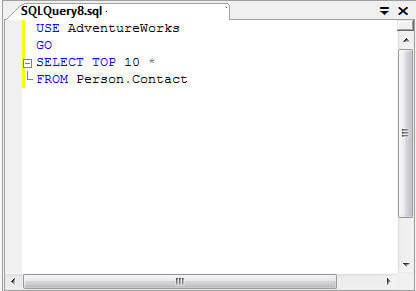
The simple solution is to use the Ctrl+R shortcut to toggle between showing and hiding the results pane.
Here is a sample query window in SSMS with just the Editor section.
a sample query window in ssms
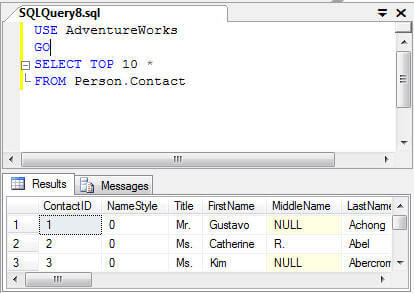
After we execute the code, half of the screen is now taken up by the Results pane.
toggle between showing and hiding the results pane when using ssms
If we just use Ctrl+R we can toggle between showing and hiding the results pane and therefore you can see more of the Editor section when you are using SQL Server Management Studio.

Thursday, June 7, 2012

Page Life Cycle

Here I have listed how the event is fire in page life cycle

OnInit Event Fire On a Page Life Cycle

i) Master Page User Control-init
ii) Page User COntrol-init
iii)Master Page -init
iv) Page - init


Page Load Event Fire On A Page life Cycle.

i) Page -Load
ii) Master Page-Load
iii)Page User Control - Load
iv) Master page User COntrol - Load


Data Binding Event Fire On A Page Life Cycle

i) Page - DataBinding
ii) Master Page - DataBinding
iii)Page User Control - Data Binding
iv) Master Page User COntrol - DataBinding

Unload Event Fire On A Page life Cycle

i) Master Page User Control-Unload
ii) Page User Control-Unload
iii)Master Page -Unload
iv) Page - Unload


A pictorial Presentation Of page life Cycle